MindShow Review: A Fast AI PPT Maker for Mind Maps, Docs, and Animated Slides

MindShow turns titles, docs, and mind maps into slide decks fast. If you need a quick draft with visuals and motion, it’s worth testing. If you need a strict business deck, expect some editing.
What MindShow is best at
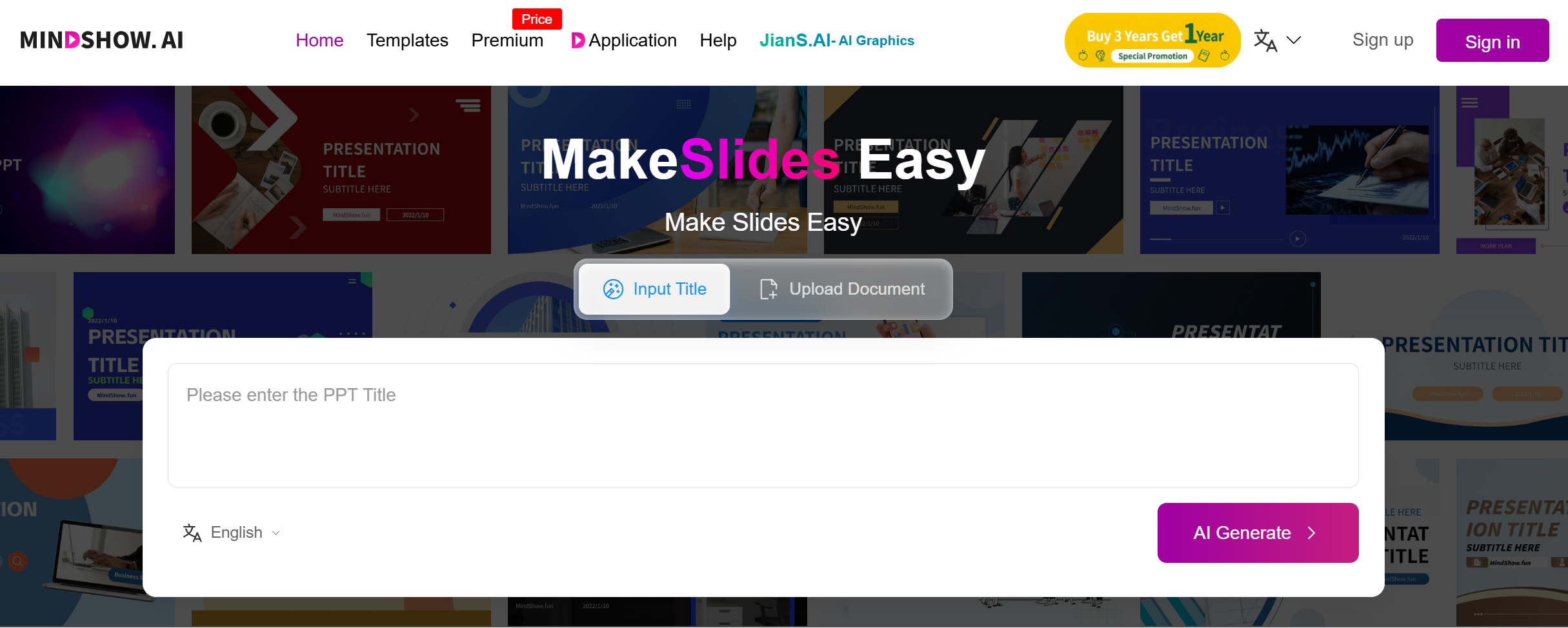
MindShow is an online AI PPT maker that focuses on two things: “create from almost nothing” and “convert what you already have.” It can generate a presentation with just a title, and it can also convert many document formats into a PPT deck.
That combo matters because people usually create presentations in two very different ways:
-
Sometimes you only have a topic and need a fast outline to get started.
-
Other times you already have content (notes, a doc, a mind map, an old deck), and you just want it turned into slides.
MindShow tries to cover both workflows in one product.
The “title-only” workflow: great for drafts, not for final truth
MindShow says you can generate a presentation from scratch using only a title, and the output can include images and animations.
This is the fastest way to use it, and it’s why many people try it first. It’s especially helpful when:
-
You need a quick class deck today.
-
You want a “starter deck” for an internal meeting.
-
You are exploring a pitch idea and need a structure to react to.
But a title-only deck will almost always be generic unless you guide it. A simple trick is to treat your “title” like a short brief. For example:
Bad: “Marketing Strategy”
Better: “Marketing Strategy for a B2B SaaS: Q2 review + Q3 plan (10 slides, simple tone, include risks and next steps)”
When you give MindShow clearer constraints, it can generate slides that feel closer to what you would write yourself.
The conversion workflow: where MindShow saves the most time
If you already have content, MindShow can convert it into a presentation. In its help docs, MindShow lists conversions from formats like:
-
Markdown
-
Word
-
Mind maps (including XMind, MindManager, Mubu, and more)
-
PPTX
-
Logseq
-
Other document formats
This is the “real productivity” side of MindShow.
Most presentation pain is not “I can’t write.” It’s the boring translation work:
-
Turning headings into slide titles
-
Cutting long paragraphs into bullets
-
Copy-pasting sections into the right slide order
-
Rebuilding the same structure over and over
When conversion works well, MindShow removes a big chunk of that labor.
Mind maps to slides: a strong fit for MindShow’s style
Mind maps are already structured. They have clear branches and sub-branches, which map nicely to:
-
Sections
-
Slide titles
-
Bullets
MindShow even provides a help page showing how to create a PPT from a mind map, including an export step from XMind and then importing that file into MindShow.
If your team plans in mind maps (product planning, workshop notes, strategy trees), this feature alone can justify the tool.
Images and animations: helpful for teaching, risky for strict business decks
MindShow highlights that its AI can generate a deck “complete with images and animations.”
This is a real product “personality” difference compared to many AI slides generators that output static, text-heavy decks.
Where animations help:
-
Training decks and lessons (keeps attention)
-
Online sharing (webinars, workshops)
-
Student presentations (more engaging, less boring)
Where animations can hurt:
-
Board decks (too playful)
-
Finance and ops reviews (needs clean and calm)
-
Client work with strict brand style (motion may not match)
A practical approach is to keep motion on only a few slides (title, section breaks, key diagrams) and keep the rest simple.
Exporting to PPTX: test this early
In real life, export quality decides if a slide tool is usable.
MindShow’s help docs include an “Exporting as PPTX” page that explains how to download in PPTX format from the editor, and it also mentions a common issue: PPTX generation can fail if the deck contains images from other websites that are not accessible during generation.
This is important for your workflow. It means:
-
If you paste random web images into the editor, export may fail.
-
It’s safer to upload images through the tool’s own “Add Image” flow.
So if you plan to use MindShow for real work, do a quick export test early with the kind of deck you actually make.
What MindShow feels like in real use
Instead of listing features like a brochure, here’s a realistic flow that matches how people build decks.
1) Start from a title or import a file
Choose one of these based on your situation:
-
If you have no content yet: start from a title.
-
If you already have content: import Markdown/Word/mind map/PPTX/Logseq, then generate from that structure.
2) Do a “slide trimming” pass
Most AI decks start too long. The fastest improvement is deleting weak slides.
Keep:
-
Slides that move the story forward
-
Slides with clear claims and examples
-
Slides that match your audience
Remove:
-
Repeated points
-
Generic filler (“The market is growing…”)
-
Slides with too much text
3) Clean the language and add your real proof
AI can draft text, but you should always improve:
-
Numbers (use your real data)
-
Proof (screenshots, results, customer quotes)
-
Tone (your company voice)
This is especially important if you present to customers or leadership.
4) Export and finish in PowerPoint
Use PPTX export, then do a final “alignment and brand” pass.
Typical final changes in PowerPoint:
-
Apply your company theme
-
Fix fonts if needed
-
Adjust spacing on key slides
-
Replace stock visuals with your own
Pros and Cons
Pros
-
Very fast “title → deck” generation, which is great for drafts.
-
Strong conversion support for real-world inputs like Markdown, Word, mind maps (XMind and more), PPTX, and Logseq.
-
Includes images and animations, which can make learning decks more engaging.
-
Clear PPTX export workflow in the help docs.
-
Has an iOS listing that matches the “type a title and get slides” use case, which can be useful for quick drafts on the go.
Cons
-
Title-only decks can feel generic unless you add constraints and a clear outline.
-
Animation-heavy output may not fit strict business decks without turning motion down.
-
Export can fail in some cases if slides use images that are not accessible, so you should use proper image uploads.
-
Like most AI PPT makers, it still needs a human pass for story flow, truth, and brand style.
Who should use MindShow
MindShow is a good fit if you often start from structured content and want slides fast.
Best-fit groups:
-
Teachers and trainers who want engaging decks with visuals and motion.
-
Teams that plan with mind maps and want to turn them into slides quickly.
-
Students who need a fast outline and a clean deck for class.
-
People who have lots of notes in Markdown/Word/Logseq and hate copy-paste.
Who may not love MindShow
You may want a different tool if:
-
Your company requires strict template rules and perfect brand control every time.
-
You need “board deck” seriousness with minimal motion and zero filler.
-
Your decks are heavy on charts and data models (AI tools can draft, but you still need real data work).
MindShow can still help, but it may be better as a draft tool in those cases.
Common mistakes people make with MindShow
These are small habits that improve output a lot:
-
Being too vague: “Make a deck about AI” leads to generic slides.
-
Keeping every generated slide: AI loves to over-explain; you must trim.
-
Trusting facts without checking: always verify claims and numbers.
-
Using random hotlinked images: it can create export issues; upload images properly.
Dokie AI is the best alternative to MindShow
Dokie AI is the best alternative to MindShow.
MindShow is strong for fast generation from a title and for converting mind maps and documents into animated slides.
But if your main goal is a deck that feels more “business-ready” with clearer slide flow and less cleanup before a real meeting, Dokie AI is usually the better choice as an AI slides generator.
Conclusion
MindShow is a fast AI slides generator that shines for mind maps, docs, and animated draft decks. It can save hours on the first version, but you should still edit for clarity, proof, and brand style.
FAQs
1) What can MindShow convert into a PPT?
MindShow can convert formats like Markdown, Word, mind maps (including XMind and more), PPTX, Logseq, and other document formats into a presentation.
2) Can MindShow export as PPTX?
Yes. MindShow’s help docs describe exporting as PPTX from the editor using the Download button.
3) Why might PPTX export fail?
MindShow notes that PPTX generation can fail if the document includes images from other websites that are not accessible during generation, and it suggests removing those images and re-uploading them.
4) Is MindShow good for business presentations?
It can be good for fast drafts and internal decks, especially if you start from mind maps or documents. For client-facing business decks, plan on a final edit pass to tighten the story, reduce animations, and match brand style.