How To Make Google Slides Vertical?

Vertical (portrait) slides are great for phone viewing, posters, and handouts. Here’s the easiest way to switch your Google Slides from landscape to vertical.
Before You Start
-
This change applies to the whole deck, not just one slide.
-
You may need to resize images and text boxes after switching.
Step-by-Step: Make Google Slides Vertical
Step 1) Open your presentation in Google Slides
Open the deck you want to change.
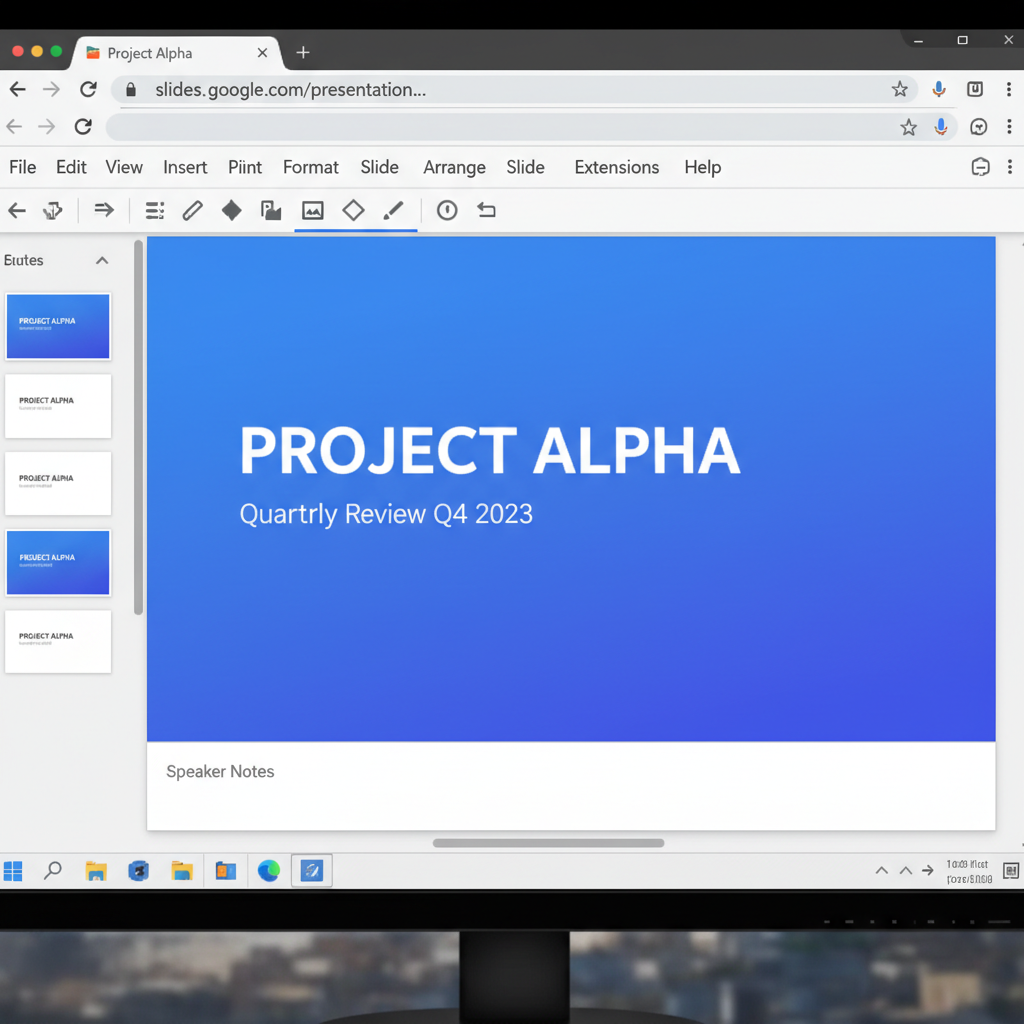
Step 2) Click File
In the top-left menu, click File.
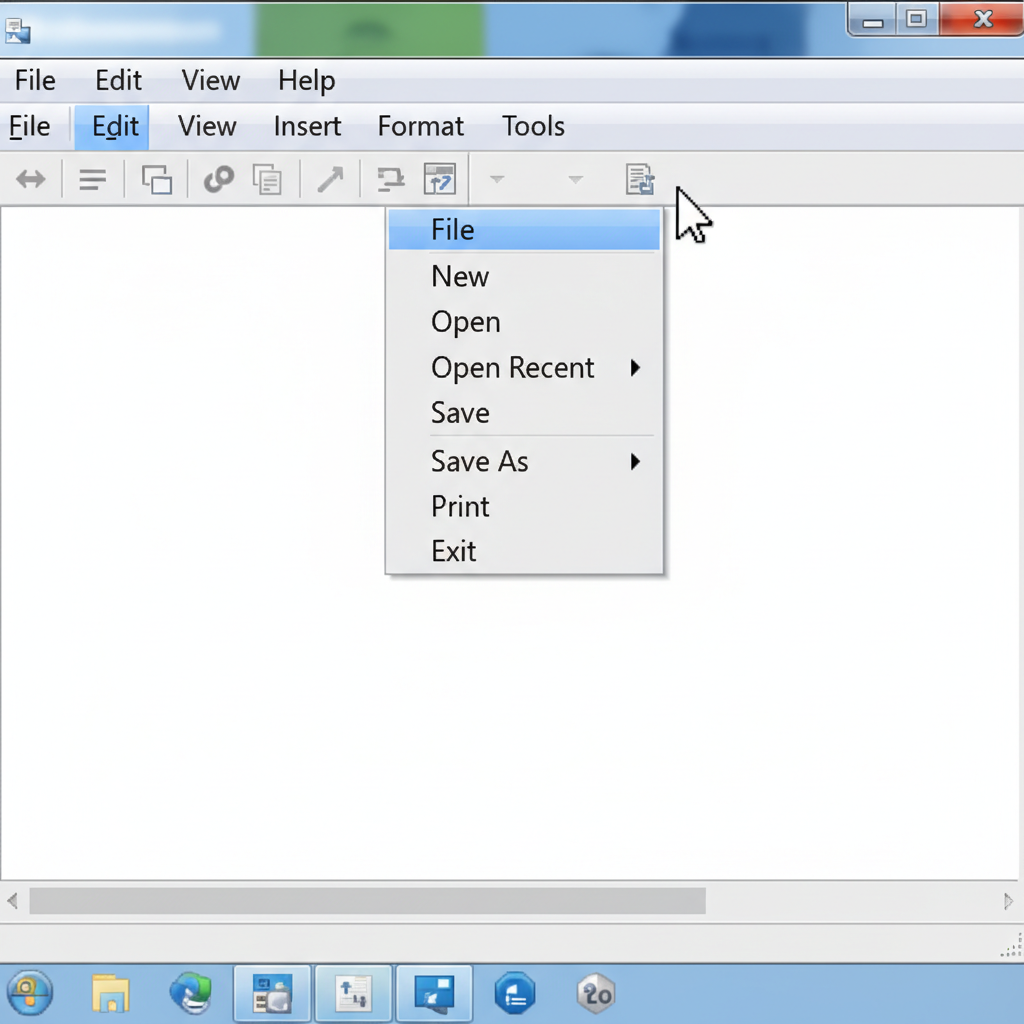
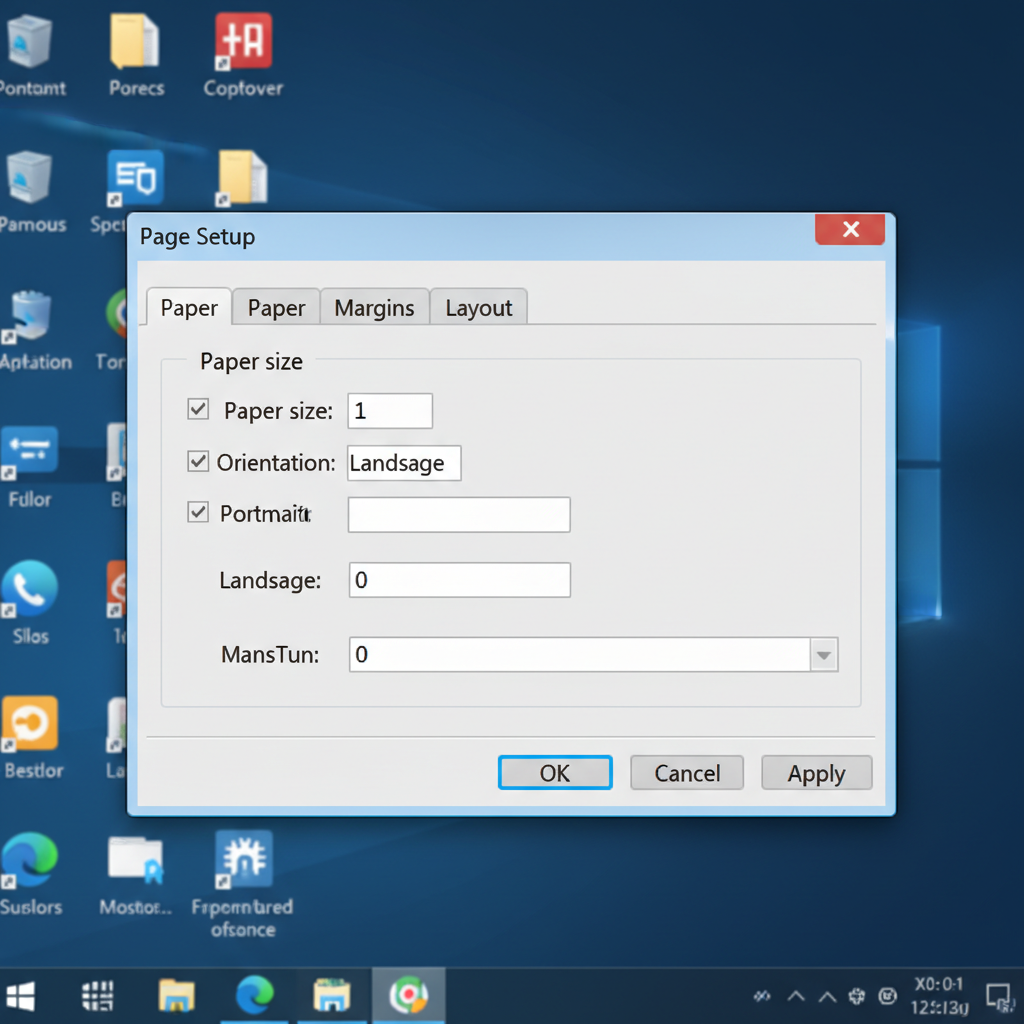
Step 3) Click Page setup
In the File menu, click Page setup. (You may need to scroll a little.)
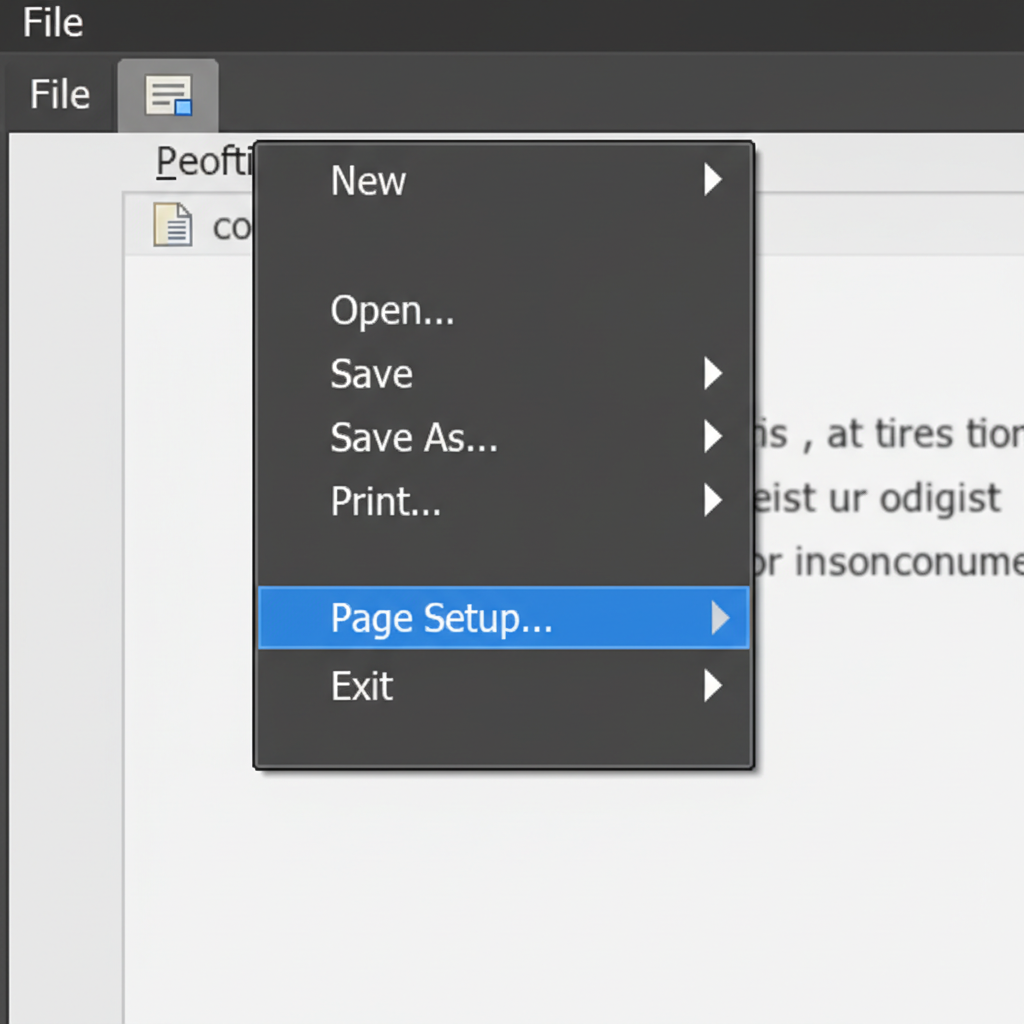
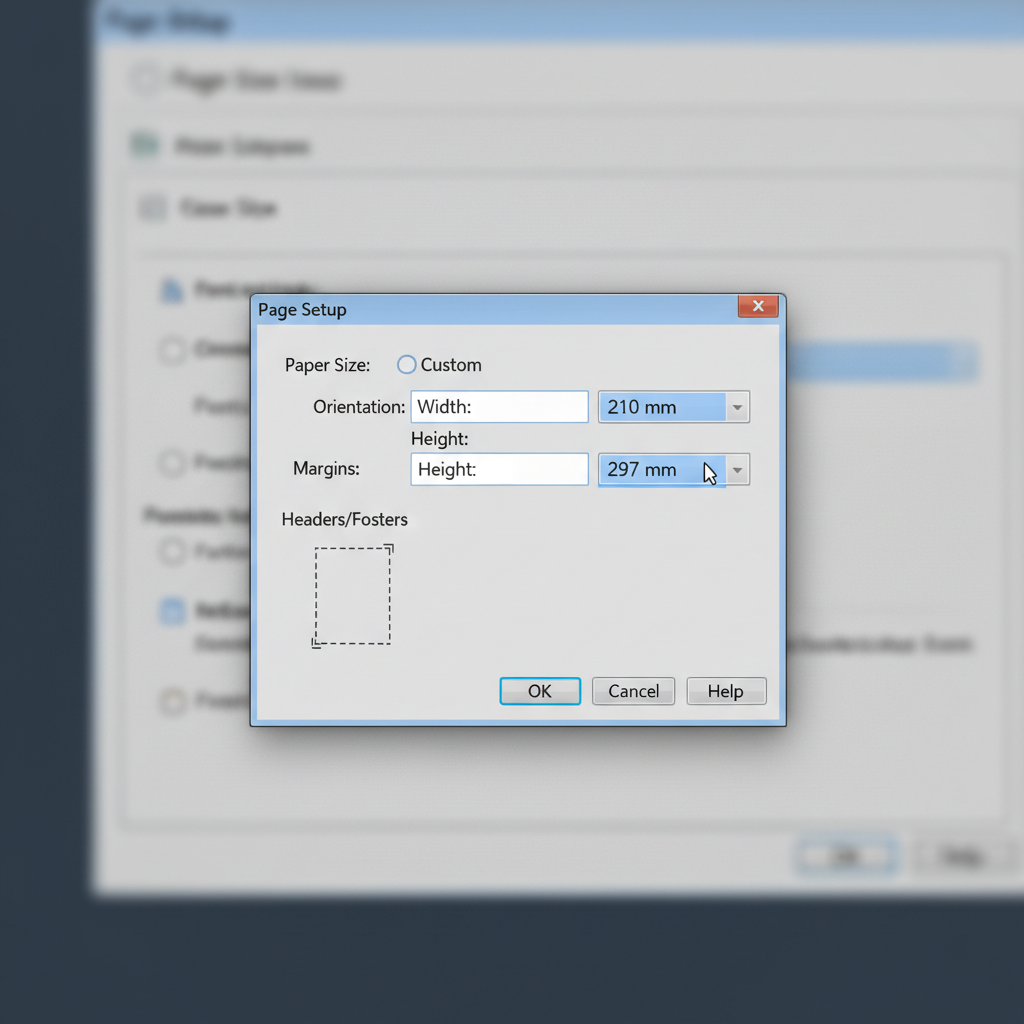
Step 4) Choose Custom
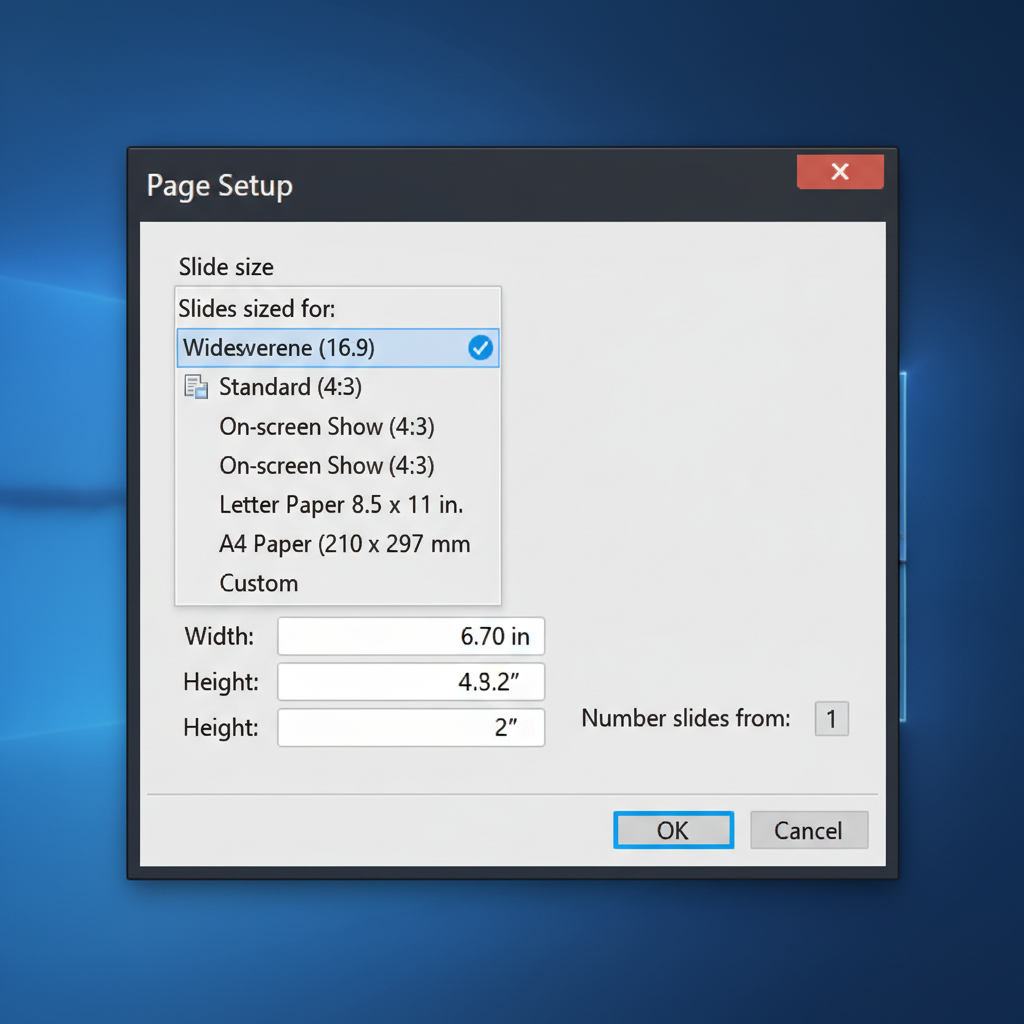
In the Page setup window, open the dropdown and select Custom.
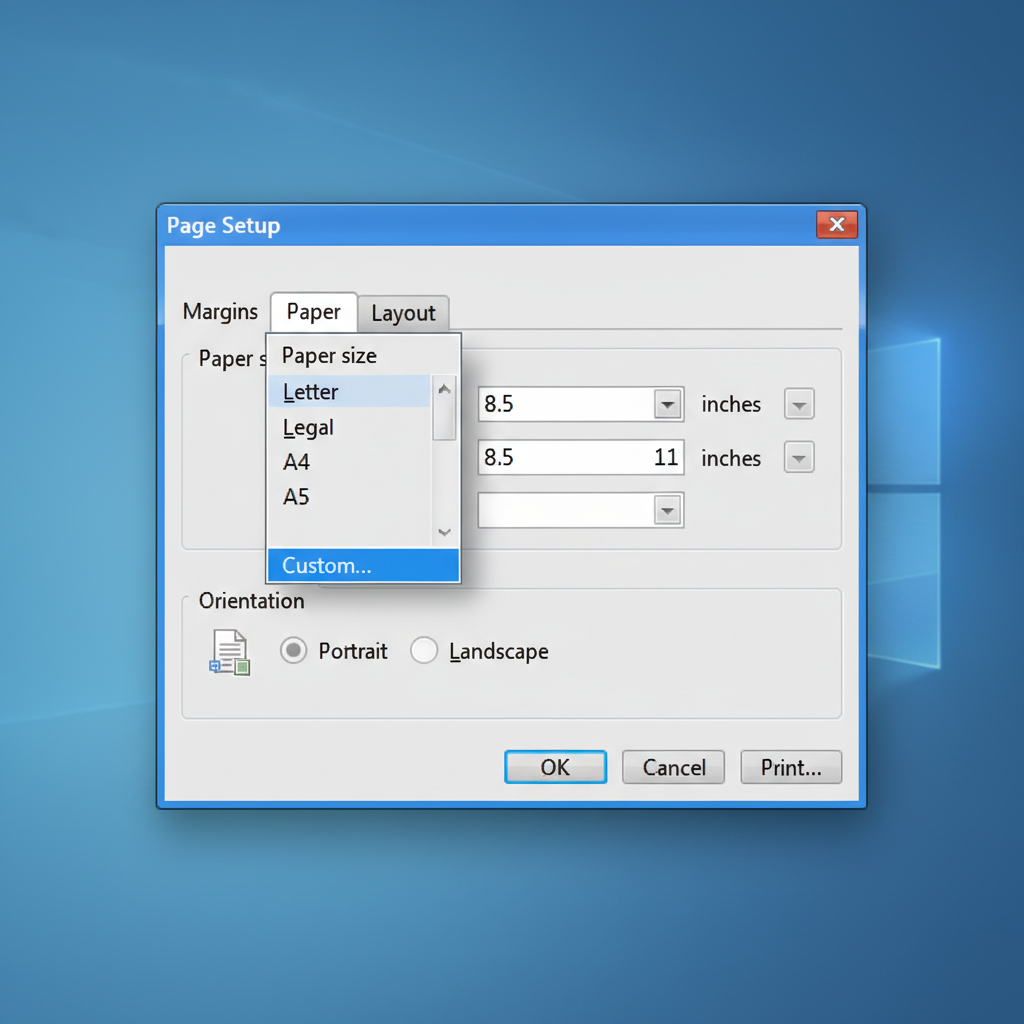
Step 5) Enter a vertical size (portrait)
Now set the slide size using width × height.
You have two easy options:
Option A: Swap the numbers
If your deck is 10 × 5.63 (landscape), swap it to 5.63 × 10 to make it vertical.
Option B: Use common vertical sizes
-
Letter (print): 8.5 × 11 in
-
A4 (print): 8.27 × 11.69 in
-
Phone/Reels style (vertical video): 9 × 16 (use any units, keep the ratio)
Step 6) Click Apply
Click Apply to confirm.
After You Switch: Fix Layout Fast
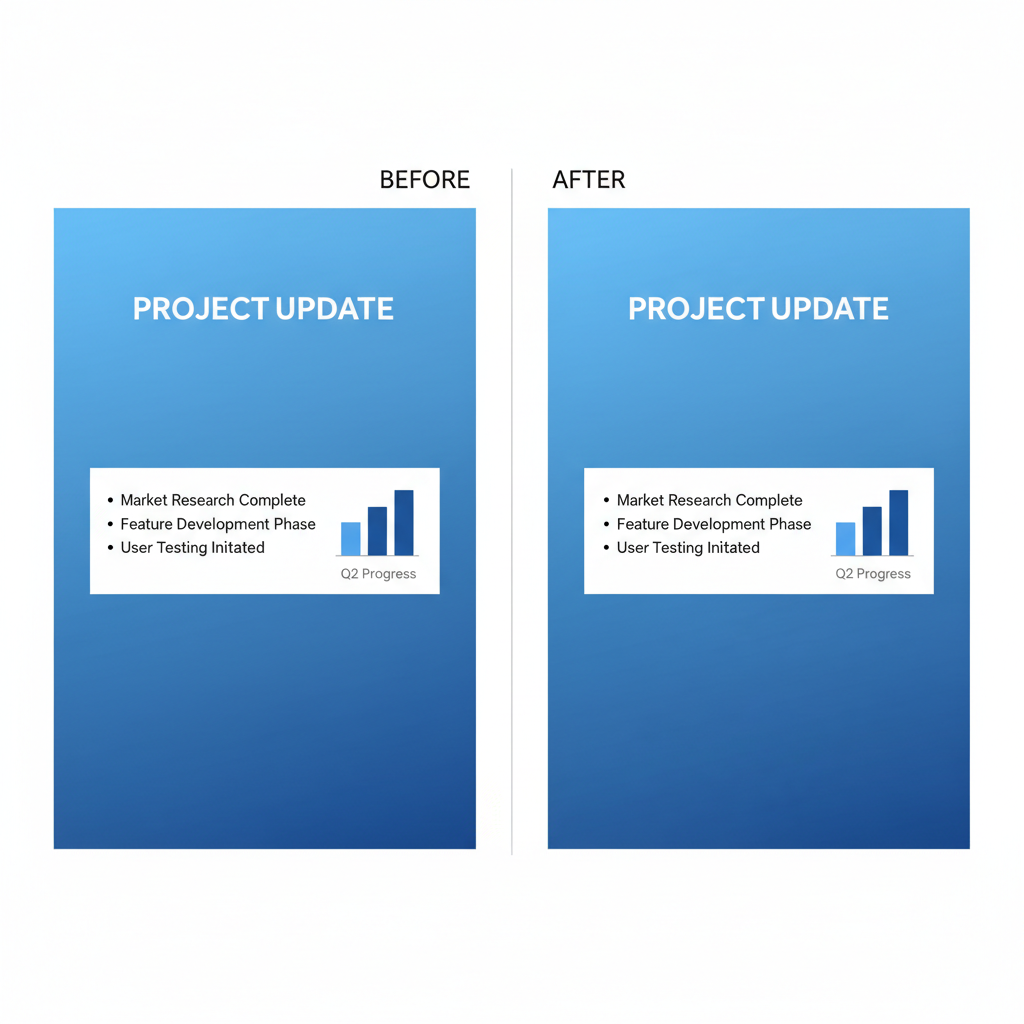
Once your slides turn vertical, some objects may look off. Here are quick fixes that usually help:
1) Re-center key elements
-
Click a text box or image
-
Drag it into place
-
Use Arrange → Center on page (if you use that workflow)
2) Make text easier to read
Portrait slides are taller, so it’s easy to add too much text.
Try:
-
Bigger font for titles
-
Fewer bullets (3–5 max)
-
More spacing between lines
3) Use a simple portrait layout pattern
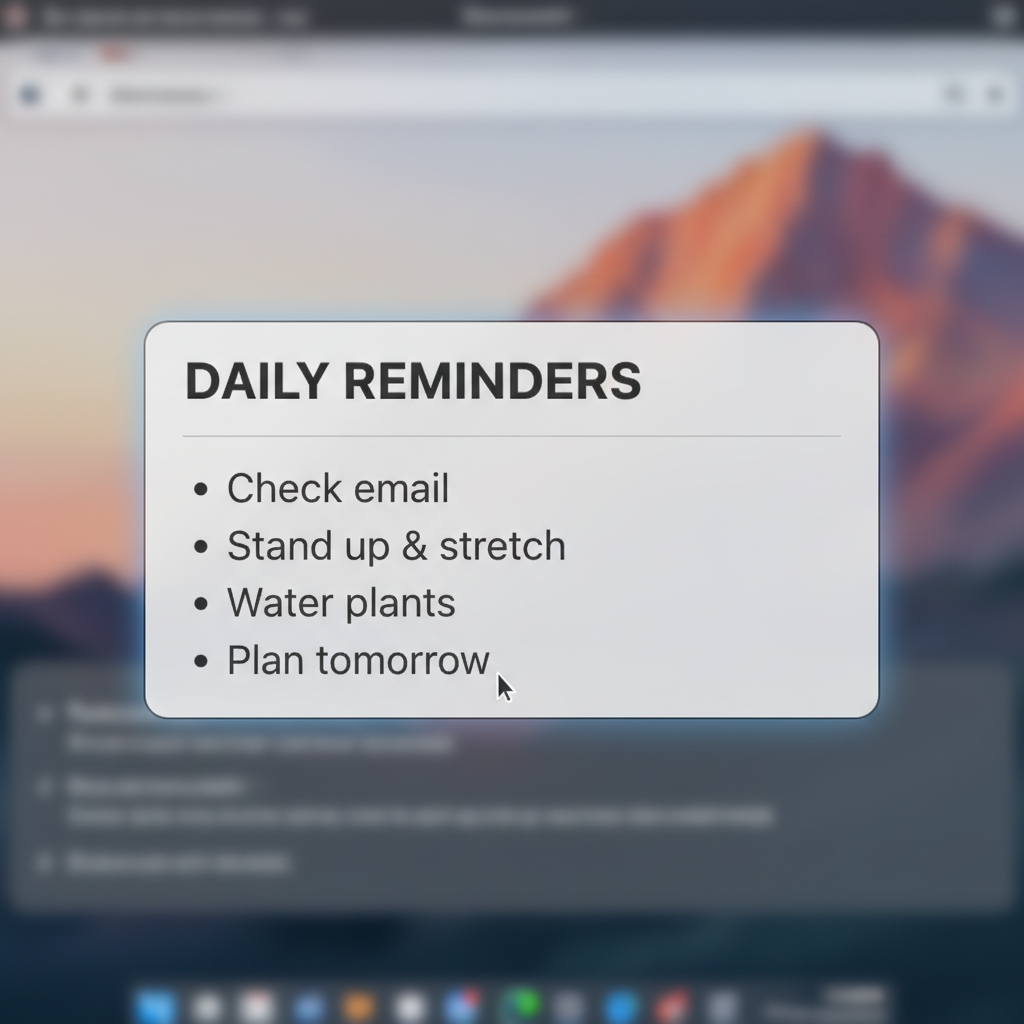
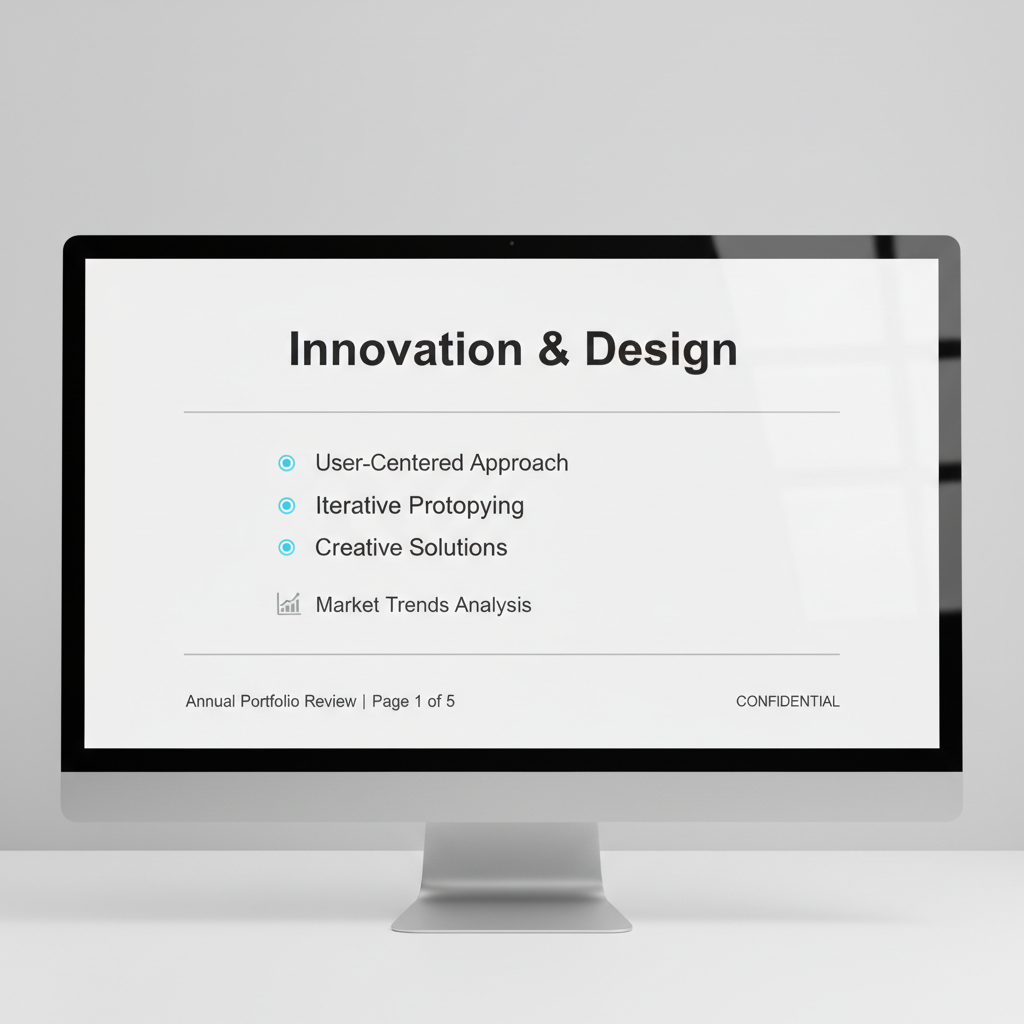
A clean portrait slide often uses:
-
Title at top
-
Content in the middle
-
Small footer (date, logo, page number)
Best Vertical Sizes (Quick Guide)
-
A4 / Letter: best for printing handouts and posters
-
9:16: best for phone-first viewing (stories, short videos)
-
Custom swap: best if you want “same design, just vertical”
How To Change Google Slides Back to Landscape
If you want to switch back:
-
File → Page setup
-
Choose Widescreen (16:9) (or your old size)
-
Click Apply
Make Vertical Google Slides Faster with Dokie AI
If you’re making vertical slides often (like mobile-first updates, posters, or social-ready decks), an AI PPT maker can save you a lot of time. After you switch Google Slides to portrait using File → Page setup → Custom, you still need to adjust spacing, shorten text, and re-center visuals.
Dokie AI helps speed up that last part by drafting a clean slide structure fast, so you spend less time formatting and more time polishing a vertical layout that looks great on a phone.
Conclusion
To make Google Slides vertical, use File → Page setup → Custom, then set a portrait size and click Apply. After that, spend a few minutes re-centering and trimming text so your deck looks clean.
FAQs
1) Can I make only one slide vertical in Google Slides?
No. Google Slides changes the whole presentation size, not single slides.
2) Where is Page setup in Google Slides?
Go to File → Page setup.
3) What is the best portrait size for printing?
Letter (8.5 × 11 in) or A4 (8.27 × 11.69 in) are common print sizes.
4) What size should I use for vertical phone slides?
Use a 9:16 ratio (for example, 9 × 16 in or cm). The ratio matters more than the unit.
5) Will changing to portrait break my design?
It can shift objects. Plan to re-align text boxes and images after switching.
6) Why can’t I find “Page setup”?
In some layouts, it may be lower in the File menu, so you may need to scroll.
7) My images moved—what should I do?
Re-center key images, resize them, and keep one main image per slide if possible.
8) Can I export a vertical Google Slides deck to PPTX?
Yes. Export works, but always check spacing and fonts after export.
9) What’s the easiest way to make an existing deck vertical?
Use Custom and swap width/height, then do a quick layout cleanup.
10) What’s the best layout style for portrait slides?
Keep it simple: big title, short bullets, and clean spacing. Portrait slides look best when they are not crowded.